
How to Use Notion to Organize Digital Files and Maximize Productivity
How to Use Notion to Organize Digital Files and Maximize Productivity
Managing digital files can quickly become overwhelming when documents, notes, links, tasks, and project materials are scattered across different apps and folders. For students, freelancers, professionals, and teams, this digital clutter can waste time and reduce productivity.
Notion helps solve this problem by giving users a flexible workspace where they can organize digital files, build databases, manage tasks, collaborate with others, and create a system that fits the way they work.
In this guide, you will learn how to use Notion to organize digital files, create a clear workspace, improve productivity, and manage your information more efficiently.
What Is Notion?
Notion is an all-in-one productivity workspace that combines notes, databases, task management, calendars, documents, and collaboration tools. Instead of using several separate apps to manage your information, you can use Notion to centralize different parts of your digital workflow.
For beginners, Notion can be used as a simple digital filing system. As you become more comfortable, it can also become a complete productivity hub for projects, tasks, content planning, study notes, client work, and personal organization.
USE NOTION TO ORGANIZE DIGITAL FILES
Why Use Notion to Organize Digital Files?
Notion is useful because it gives you more flexibility than a traditional folder system. Instead of storing files only by location, you can organize information by tags, status, project, date, priority, category, or any other property that makes sense for your workflow.
Using Notion to organize digital files can help you:
- Centralize notes, documents, links, and project resources.
- Create searchable databases for easier file management.
- Track deadlines, tasks, and project progress.
- Reduce time spent searching for information.
- Build reusable templates for repeated workflows.
- Collaborate with teammates in one shared workspace.
- Connect related files, notes, and tasks in a structured way.
How to Set Up Notion for Digital File Organization
Before adding all your files into Notion, it is important to create a simple structure. A clear setup will make your workspace easier to use and prevent it from becoming cluttered over time.
USE NOTION TO ORGANIZE DIGITAL FILES
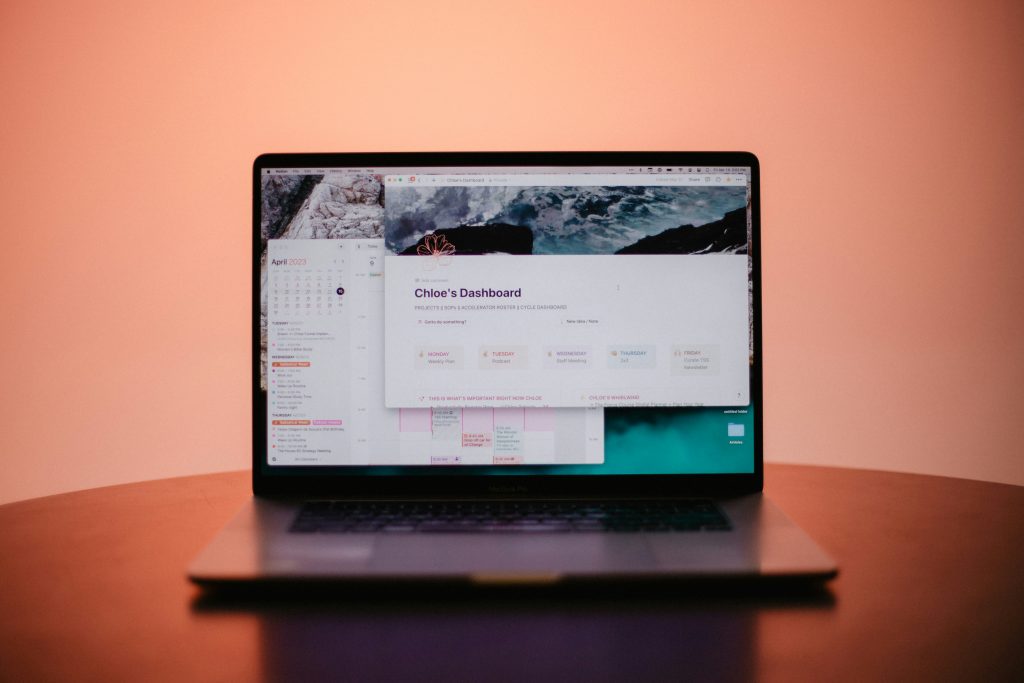
1. Create a Main Dashboard
Start by creating a main dashboard that acts as the home page for your digital workspace. This page should give you quick access to your most important areas.
Your dashboard can include sections such as:
- Projects
- Documents
- Tasks
- Notes
- Resources
- Calendar
- Important links
A dashboard helps you avoid searching through many pages. It gives your workspace a clear starting point and makes navigation easier.
READ ALSO: Top 5 Powerful AI Tools to Optimize Your Workflow and Task Management
2. Create a Digital Files Database
A database is one of the best ways to organize digital files in Notion. Instead of creating many disconnected pages, you can store file information in a structured table, board, list, or gallery view.
To create a digital files database, add properties that help you sort and filter your information. Useful properties include:
- File Name: The name of the document, note, or resource.
- Category: The type of file, such as document, image, spreadsheet, link, note, or reference.
- Project: The project or area connected to the file.
- Status: The current stage, such as active, archived, pending, or completed.
- Date Added: When the file was added to the workspace.
- Tags: Keywords that make the file easier to search.
- Attachment or Link: The actual file, external link, or connected document.
This structure makes it much easier to find files later, especially when your workspace grows.
3. Organize Files by Category
Categories help you separate different types of information. For example, you may want different categories for client files, study materials, content ideas, personal documents, invoices, meeting notes, or research links.
Instead of creating too many folders, use categories and tags together. Categories give your workspace a broad structure, while tags help identify details inside each file.
4. Use Tags to Improve Search and Filtering
Tags are useful when a file belongs to more than one topic. For example, a marketing report could have tags such as “SEO,” “analytics,” “client work,” and “monthly report.”
With tags, you can filter your database quickly and find related files without manually searching through every page.
READ ALSO: Top 5 Powerful AI Tools to Optimize Your Workflow and Task Management
5. Add Links and Attachments
Notion allows you to add links, files, images, PDFs, Google Drive documents, and other resources inside pages and databases. This makes it easier to keep important materials connected to the right project or task.
For example, a project page can include:
- Briefing documents
- Meeting notes
- Reference links
- Design files
- Task lists
- Deadlines
- Final deliverables
This turns each page into a complete workspace instead of a simple note.
Example Notion File Organization System
| Section | Purpose | Recommended Properties |
|---|---|---|
| Documents | Store important files, PDFs, notes, and resources. | Category, Tags, Date Added, Status |
| Projects | Connect files with active work or client projects. | Project Name, Deadline, Owner, Status |
| Tasks | Track actions related to files and projects. | Priority, Due Date, Status, Related File |
| Resources | Save useful links, guides, templates, and references. | Topic, Source, Tags, Link |
| Archive | Keep old files without cluttering active workspaces. | Date Archived, Category, Project, Notes |
How to Use Notion Templates to Save Time
Templates are one of the easiest ways to make Notion more efficient. Instead of creating the same page structure repeatedly, you can build templates for common workflows.
READ ALSO: Top 5 Powerful AI Tools to Optimize Your Workflow and Task Management
Useful Notion templates include:
- Project tracker
- Meeting notes
- Content calendar
- Student assignment tracker
- Client file organizer
- Weekly planning page
- Research database
For example, if you manage client projects, you can create a template that already includes sections for project goals, deadlines, files, tasks, notes, and final deliverables. This saves time and keeps your work consistent.
How to Use Notion for Better Productivity
Notion is not only a place to store files. It can also help you manage your tasks, deadlines, and daily priorities. When your files and tasks are connected, it becomes easier to understand what needs to be done and where the relevant information is stored.
Connect Files to Tasks
One useful method is to connect each important file to a related task or project. For example, if you have a report to review, the report file can be linked directly to the task that requires your action.
This reduces the time spent searching for documents and makes your workflow more organized.
Use Calendar Views for Deadlines
If your files are connected to deadlines, Notion’s calendar view can help you see what is coming next. This is useful for assignments, content planning, project deliverables, invoices, and meetings.
A calendar view gives your file organization system a time-based structure, helping you stay ahead of important dates.
Create a Weekly Review Page
A weekly review page can help you keep your Notion workspace organized. Once a week, review new files, update task statuses, archive old items, and check upcoming deadlines.
This habit prevents your workspace from becoming messy and keeps your productivity system useful over time.
Advanced Notion Features for Digital Organization
After building a basic file management system, you can explore more advanced Notion features to improve your workflow.
Linked Databases
Linked databases allow you to display the same database in different places with different filters. For example, you can have one main digital files database but show only active project files on your project dashboard.
This helps you avoid duplicate information while keeping your workspace flexible.
Relations and Rollups
Relations allow you to connect one database to another. For example, you can connect a file database to a project database, so each file is linked to the correct project.
Rollups allow you to summarize related information, such as how many files are connected to a project or which tasks are still unfinished.
Page Hierarchies
Page hierarchy helps you organize your workspace logically. You can create main pages for broad areas such as Work, Personal, Study, or Projects, then add subpages for specific files, notes, or workflows.
This keeps related information grouped together and makes your workspace easier to navigate.
Collaboration and Permissions
Notion allows users to share pages, assign tasks, leave comments, and manage permissions. This is useful for teams that need to collaborate without losing track of files or feedback.
Permissions are especially important when working with clients or team members because they help control who can view, edit, or comment on specific pages.
Integrations and Automations
Notion can work with other tools through embeds, integrations, and automation platforms. You can connect resources from Google Drive, calendars, project management tools, forms, and other apps.
For advanced workflows, tools like Zapier or Make can help automate repetitive actions, such as creating a Notion entry when a form is submitted or saving important links into a database.
Common Mistakes to Avoid When Organizing Files in Notion
Notion is powerful, but it can become messy if you do not use it with a clear structure. Avoid these common mistakes:
- Creating too many pages: Too many disconnected pages can make your workspace harder to navigate.
- Not using tags: Tags make files easier to filter and search.
- Ignoring templates: Templates save time and keep repeated workflows consistent.
- Overcomplicating the setup: Beginners should start simple and add advanced features gradually.
- Not reviewing your workspace: Regular cleanup keeps your system useful.
- Mixing active and archived files: Use an archive section to keep old files without clutter.
Best Practices for Using Notion Productively
To get better results from Notion, focus on building a system that is simple, searchable, and easy to maintain.
- Start with one main dashboard.
- Create one central digital files database.
- Use categories for broad organization.
- Use tags for detailed filtering.
- Connect files to projects and tasks.
- Create templates for repeated workflows.
- Use calendar views for deadlines.
- Archive old files regularly.
- Review your workspace weekly.
FAQ About Using Notion to Organize Digital Files
Is Notion good for organizing digital files?
Yes. Notion is useful for organizing digital files because it allows you to create databases, add tags, attach files, save links, connect projects, and manage information in one flexible workspace.
Can I store files directly in Notion?
Yes. You can upload files to Notion pages and databases. You can also link to files stored in other services, such as Google Drive or Dropbox, if you prefer to keep larger files outside Notion.
How should beginners organize Notion?
Beginners should start with a simple dashboard, a digital files database, a task database, and a few useful categories. It is better to begin with a simple setup and add advanced features later.
Can Notion improve productivity?
Yes. Notion can improve productivity by centralizing information, connecting files to tasks, tracking deadlines, reducing digital clutter, and making important resources easier to find.
Is Notion better than folders for file organization?
Notion is more flexible than traditional folders because it allows you to organize files by tags, status, projects, dates, and custom properties. However, many users combine Notion with cloud storage for the best results.
Conclusion
Learning how to use Notion to organize digital files can help you reduce clutter, save time, and build a more productive workflow. Instead of keeping notes, documents, links, and tasks scattered across different places, Notion allows you to centralize information in a flexible workspace.
Start with a simple dashboard, create a digital files database, use tags and categories, connect files to projects, and review your workspace regularly. As your needs grow, you can add templates, linked databases, relations, calendars, and automation tools.
With the right setup, Notion can become more than a note-taking app. It can become a complete digital organization system that supports your productivity, collaboration, and long-term workflow.
USE NOTION TO ORGANIZE DIGITAL FILES

Beatriz Johnson is a technology writer with an academic background in Digital Communication and Information Technology. She helps beginners understand digital tools, online safety, apps, productivity, and basic tech skills through clear and practical guides.