Connecting Your Phone to Your TV: A Step-by-Step Guide for Beginners
Exploring the Connection Options
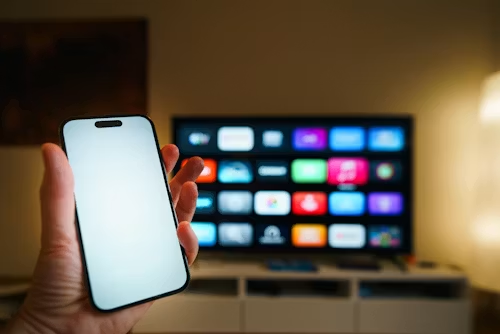
Connecting your phone to your television may seem complicated at first, but it can greatly improve the way you watch, share, and enjoy content. Imagine streaming your favorite series from services like Netflix or Hulu directly from your smartphone to your TV. This simple connection brings together the convenience of mobile technology with the comfort of a larger screen.
Wireless Connections
Wireless connections can make linking your devices much easier. By using your home Wi-Fi network, many smartphones allow you to stream content without dealing with tangled cables.
Popular wireless methods include screen mirroring technologies such as Apple AirPlay and Google Chromecast. With just a few taps, you can mirror your phone’s screen on your TV, making it easy to share vacation photos, watch videos, or join video calls with family gathered around the screen.
Android users can also use tools like Smart View or Miracast for similar functionality. These methods are usually simple to set up. In most cases, you only need to make sure both devices are connected to the same Wi-Fi network and that the correct source is selected on your TV.
Wireless connections are convenient because they reduce cable clutter and allow you to share content more freely from your phone to your television.
Wired Connections
For users who want a more stable connection, wired options can offer better reliability and quality, especially when streaming high-definition video. An HDMI cable can create a direct connection between your phone and TV.
Most modern smartphones require an adapter for this setup. iPhones usually need a Lightning to HDMI adapter, while many Android devices use a USB-C to HDMI adapter. This method provides high-quality audio and video transfer without the lag that can sometimes happen with wireless connections.
Wired connections can be especially useful for gaming. By connecting your phone directly to your TV, you can enjoy smoother gameplay on a larger screen, making the experience more immersive and enjoyable during multiplayer sessions.
Smart TVs and Built-in Apps
Modern Smart TVs often include built-in features that make phone-to-TV connections easier. Many come with apps such as Netflix or YouTube, allowing you to access content directly without needing extra hardware.
Many Smart TVs also support screen casting, which lets you display media from your phone on the TV. Devices and platforms like Roku and Apple TV also provide simple interfaces that work well with most smartphones. With a few clicks, you can browse streaming services, discover new shows, or even use your phone as a remote control.
Final Thoughts
There are several ways to connect your phone to your TV, depending on your preferences and comfort with technology. Wireless options offer convenience, wired connections provide stability, and Smart TVs simplify the process with built-in tools.
Understanding these options can help you get the most from your entertainment setup. With the right connection method, you can turn your living room into a personal cinema or an easy place to share photos, videos, and other content with others.
Choosing the Right Connection Method
When deciding how to connect your phone to your TV, the number of options may feel overwhelming. However, the process becomes easier when you divide them into two main categories: wired and wireless connections. Each method has its own advantages, and choosing the right one depends on your needs.
Understanding Wireless Connections
Wireless connections have become popular because they are simple and convenient. By using your home Wi-Fi network, you can stream content without relying on cables.
Here are some common wireless technologies:
- Apple AirPlay: A good option for iPhone users, AirPlay allows you to mirror your iPhone or stream audio and video from supported apps to an Apple TV or compatible Smart TV.
- Google Chromecast: Chromecast plugs into your TV’s HDMI port and works with both Android and iOS devices. From a compatible app, you can cast shows, videos, or even mirror your full screen.
- Screen Mirroring: Features like Smart View for Samsung devices and Miracast for many Android phones allow users to display smartphone content on the TV screen. This is useful for presentations, photo slideshows, and shared viewing.
One major advantage of wireless connections is flexibility. You are not limited by cable length, so you can move around while streaming or sharing content. However, performance depends on Wi-Fi signal strength. A weak connection may cause lag or buffering. Before setting up a wireless connection, make sure both devices are on the same network and check that firmware updates are installed.
Exploring Wired Connections
For those who want a more stable and consistent connection, wired options are often the better choice. These setups usually use an HDMI cable, which supports high-quality audio and video transfer.
Here are the key points to know:
- Adapters: Depending on your phone model, you may need an adapter. iPhones typically require a Lightning to HDMI adapter, while many Android phones use a USB-C to HDMI adapter.
- Direct Connection: Connecting your phone to the TV through an HDMI cable reduces the chance of lag, making it ideal for watching videos or playing games.
- Multi-Device Use: Many modern TVs include several HDMI inputs, allowing you to connect multiple devices, such as gaming consoles, Blu-ray players, and phones, and switch between them easily.
Although wired connections require a physical cable, they are often the best option for high-definition content, gaming, and uninterrupted viewing.
Navigating Smart TV Features
Smart TVs have made it easier than ever to connect phones and other devices. Many include built-in apps and wireless casting features that connect directly with smartphones.
Some Smart TVs already have streaming apps installed, which means you may not need to use your phone at all for certain content. This gives users more flexibility and makes the overall viewing process simpler. With built-in casting and app support, Smart TVs can bridge the gap between mobile content and the larger screen with very little effort.
Understanding these connection methods helps you choose the best option for your lifestyle. By comparing wired and wireless solutions, you can create a smoother and more enjoyable home entertainment experience.
Advantages of Connecting Your Phone to Your TV
In the digital age, connecting your smartphone to your television can greatly improve your entertainment experience. Understanding the advantages of this setup can help you make better use of both devices.
| Advantages | Key Features |
|---|---|
| Expanded Viewing Options | Stream videos, photos, and games directly from your phone to a larger screen. |
| Improved Sharing Experience | Share media with family and friends without everyone crowding around a small phone screen. |
Connecting your phone to your TV gives you more ways to enjoy content. Whether you want to watch a movie with friends or show vacation photos to your family, this setup offers convenience, better visibility, and a more enjoyable sharing experience.
Setting Up Your Connection
Once you choose the right connection method, the next step is setting it up correctly. Whether you prefer a wired or wireless connection, following the right steps can make the process smoother.
Preparing for Wireless Setup
If you are using a wireless connection, start by making sure both your phone and TV are connected to the same Wi-Fi network. If they are on different networks, they may not detect each other.
Follow these steps:
- Enable Wi-Fi: Make sure Wi-Fi is turned on for your TV. This option is usually found in the settings menu under “Network” or “Connections.”
- Access the Screen Mirroring Option: On your TV, open the screen mirroring or casting option. This may appear in the quick settings menu. Your TV may display a device name that you will need to select on your phone.
- Initiate Connection from Your Phone: On your smartphone, swipe down from the top of the screen to open quick settings. Look for options such as “Smart View,” “Cast,” or “AirPlay,” depending on your device.
- Select Your TV: Choose your TV from the list of available devices. A prompt may appear on the TV asking you to confirm the connection. Accept it to begin mirroring or casting.
Once connected, you can enjoy videos, games, photos, and other content on a larger screen.
Wired Connection Step-by-Step
If you prefer the stability of a wired connection, setup is usually straightforward, but you will need the right equipment.
Follow these steps:
- Gather Your Cables: Get an HDMI cable and the correct phone adapter, such as a Lightning adapter for Apple devices or a USB-C adapter for many Android devices.
- Plug It In: Connect one end of the HDMI cable to an available HDMI port on your TV. Connect the other end to the adapter, then plug the adapter into your phone.
- Select the Right Input: Turn on your TV and use the remote to switch to the HDMI input you connected. The exact menu may vary depending on your TV model.
- Enjoy Your Content: Once connected, your phone screen should appear on the TV. Open your preferred app, choose a video, and enjoy viewing it on the larger screen.
Troubleshooting Common Issues
Connecting your phone to your TV should be simple, but occasional issues can happen. Here are some common problems and how to fix them:
- No Wi-Fi Detection: If your TV does not recognize your phone, confirm that both devices are connected to the same Wi-Fi network. Restart both devices if needed.
- Screen Mirroring Lag: Wireless streaming may sometimes lag or buffer. Try improving your Wi-Fi signal, moving closer to the router, or reducing distance between connected devices.
- HDMI Connection Problems: If no image appears, check that the HDMI cable is firmly connected on both ends and that the correct HDMI input is selected on your TV.
Solving these common issues can improve your connection and make streaming from your phone to your TV much easier.
Conclusion
Connecting your phone to your TV opens up more ways to enjoy content on a larger screen. Whether you use a wired HDMI setup or a wireless casting method, beginners can follow simple steps to create a smooth connection.
Each method has its strengths. Wired connections usually provide better stability and reliability, while wireless options offer more convenience and flexibility.
As technology continues to evolve, it is worth staying aware of new features that may improve phone-to-TV connectivity, including better streaming protocols and Smart TV updates. If connection problems appear, basic troubleshooting can reduce frustration and help restore a seamless viewing experience.
Whether you want to stream movies, share photos, or play games, connecting your phone to your TV can make everyday entertainment more enjoyable. Take time to explore your device settings and features, and you may discover new ways to get more value from both your phone and television.

Beatriz Johnson is a technology writer with an academic background in Digital Communication and Information Technology. She helps beginners understand digital tools, online safety, apps, productivity, and basic tech skills through clear and practical guides.