
How to Use Notion for Personal Organization: A Beginner’s Guide to Task Management and Productivity
Unlocking Your Potential with Notion
In today’s fast-paced world, staying personally organized can feel overwhelming. With growing to-do lists, competing priorities, and multiple projects constantly on your mind, having a clear system is essential. That is where Notion comes in. More than a basic note-taking app, Notion is a flexible workspace that can support both your personal and professional life.
Why use Notion for personal organization? Several features make it especially useful:
Customizable Workspaces: Notion lets you design a setup that fits the way you work. Its user-friendly interface allows you to create pages, databases, and templates that match your own style. For example, you could build a workspace that combines a project tracker with a goal-setting section, keeping everything important only a click away.
Integrated Task Management: You can manage tasks using kanban boards, calendars, and lists. Instead of dealing with scattered sticky notes or disconnected reminders, Notion lets you create organized digital boards where tasks move through different stages of completion. This is especially helpful for project management, as it gives you a clear view of progress, deadlines, and unfinished work.
Collaboration Tools: Notion is also useful for teamwork because it supports easy sharing and co-editing. Whether you are working on a class project or a marketing campaign, the platform makes collaboration smoother. You can assign tasks, leave comments directly in the workspace, and make real-time edits so everyone stays aligned.
Notion combines flexibility and functionality, making it useful for students, professionals, and anyone looking to improve productivity. As a beginner, you may wonder how to get the most out of the platform. Over time, you can learn how to structure projects, set goals, and track progress in a way that feels natural. Because different components can be linked together, Notion helps you see your tasks and projects as part of a connected system rather than isolated pieces.
Throughout this guide, you will find practical steps and tips for using Notion for task management and better productivity. From creating a reading list to tracking fitness goals, the possibilities are wide-ranging. By the end, you will have the foundation needed to turn scattered routines into organized systems. Students can connect class schedules with assignment deadlines, while professionals can manage personal and work responsibilities without unnecessary clutter.
Are you ready to begin your journey toward better organization? Let’s explore how Notion can help you unlock your productivity potential.
Getting Started: Setting Up Notion for Optimal Organization
If you are new to Notion, organizing your life with the platform may seem intimidating at first. However, a few simple steps can help you create a structured workspace that supports personal organization and improves productivity. Here is how to begin.
Creating Your First Workspace
Your productivity journey in Notion starts with creating your first workspace. Follow these basic steps:
Sign Up and Explore: Begin by creating a free Notion account. Take time to explore the main interface, including the sidebar, top navigation bar, and blank workspace canvas. Understanding where everything is will make the platform easier to navigate.
Create a New Page: In the sidebar, click “Add a page.” You can name this page based on its purpose, much like labeling a new notebook. For example, you might call it “Personal Projects” or “Daily Planner.” This gives your workspace a clear starting point.
Add Blocks: Notion organizes content through blocks. A block can be text, a heading, an image, a to-do list, or even a database. Start adding blocks to map out your ideas. You might create a to-do list block for daily tasks or a gallery block for inspiration images.
Structuring Your Notion Workspace
After creating your first page, the next step is to structure your workspace in a way that is easy to use. This means grouping related information and making navigation simple. Consider these tips:
Use Databases: Notion allows you to create databases for almost any type of project. You can build tables to track deadlines, databases for projects, or archives for notes. Databases can include properties such as due dates, priority levels, and tags, giving you more control over your information.
Link Related Pages: Notion lets you connect pages to one another, creating a network of related content. For example, you can link a project page to a task list, making it easier to understand what needs to be completed for that project.
Utilize Templates: Notion offers many templates for different needs, including habit trackers, meeting notes, and planning pages. Exploring these templates can save time and provide inspiration as you build your own setup.
By following these first steps, you can begin creating a digital workspace that feels organized and practical. Your Notion setup should reflect your habits and preferences, so experiment with layouts and structures until you find what works best. Features such as interactive databases and customizable pages make Notion a flexible platform that can adapt to your personal style.
In the next section, we will look more closely at task management strategies that make the most of Notion’s capabilities. You will see how to turn your tasks into achievable goals and improve your productivity in the process.
| Category | Key Features |
|---|---|
| Task Management | Allows users to create detailed task lists, set priorities, and add due dates. |
| Customization | Lets users tailor layouts and templates to match their workflows and improve efficiency. |
| Collaboration Tools | Supports real-time collaboration, making it easy to share lists and work with teams. |
| Integrated Notes | Combines notes and tasks in one accessible place. |
For beginners learning how to use Notion for personal organization, the platform’s flexible interface is one of its strongest advantages. Its task management features allow users to create detailed lists organized by priority or due date, making it easier to see what needs attention.
These features work together to support productivity. Integrated notes help keep information connected, while collaboration tools make teamwork easier. The customization options also allow users to build systems that match the way they naturally work. By exploring templates and adapting them to specific tasks, users can create practical workflows that support both independent projects and team efforts.
Embracing these features can significantly improve organization and task management for beginners, helping build a more efficient and productive routine.
Maximizing Task Management with Notion: Techniques to Boost Productivity
Once you have created your Notion workspace and organized your pages, you can begin improving your task management system with Notion’s more powerful features. Task management is not only about completing individual tasks. It is also about balancing responsibilities, goals, and time. The following strategies can help you use Notion more effectively as an organizational tool.
Creating an Effective Task List
A task list is the foundation of a strong organization system. To make your task list more useful in Notion, consider these steps:
Prioritize Tasks: Add priority levels to help you focus on what matters most. You can create a priority property in your task database and label tasks as “High,” “Medium,” or “Low.” This makes it easier to visually identify where your attention should go first.
Use Tags: Tags can make task management more flexible. You can tag tasks with project names, deadlines, or other relevant keywords. This is especially useful when managing several projects at once, as it allows you to filter and track related tasks more easily.
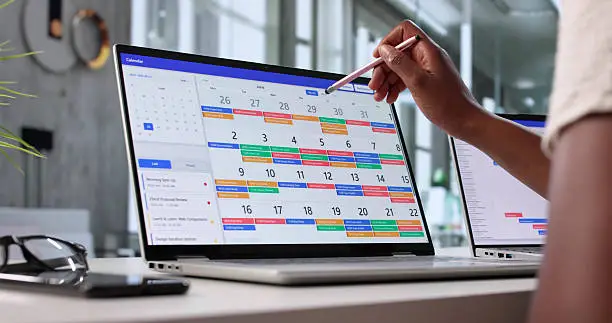
Visualize Your Tasks: Notion’s calendar view is helpful for seeing deadlines and commitments over time. By switching your task list into a calendar format, you can better understand how tasks overlap and plan your schedule more effectively. This can also help prevent overcommitment.
Setting Up Reminders and Due Dates
Once your tasks are organized and prioritized, reminders can help make sure nothing is forgotten.
Adding Due Dates: Each task in Notion can include a due date property. This helps you visualize timelines and receive alerts as deadlines approach, making time management easier.
Integrate with Calendars: Connecting your Notion task lists with external calendars, such as Google Calendar, can improve your organization even further. This allows you to keep tasks in Notion while also receiving reminders on your mobile device.
Utilizing Notion’s Project Management Features
If you are managing multiple projects, Notion’s project management features can help create a smoother workflow.
Kanban Boards: A Kanban board in Notion makes project tracking more visual. You can move tasks through stages such as “To Do,” “In Progress,” and “Completed.” This approach helps you stay engaged with the progress of your work.
Connecting Projects and Tasks: Linking task lists directly to related project pages adds useful context. When you view a project page, you can also see the tasks connected to it, giving you a quick understanding of what needs to be done.
Notion is more than a static list of tasks. It can become an active workspace where you build stronger productivity habits. By using these task management techniques, you can turn a simple to-do list into a complete productivity system tailored to your needs. With tasks organized and prioritized, it becomes easier to approach your day with clarity and confidence.
As you continue exploring Notion, the next section will guide you through time management strategies and habit-building practices that support long-term productivity. These features can help connect your daily actions with your bigger goals.
Conclusion: Elevate Your Personal Organization with Notion
As this guide has shown, Notion is a versatile tool that can greatly improve personal organization and productivity. By understanding its core features and applying practical task management techniques, you can turn a scattered workflow into a structured and purposeful system. Notion’s task lists, calendar synchronization, and project management tools can help align your daily responsibilities with your larger goals.
The key to using Notion well is customization and consistency. When you create a workspace that reflects your own habits and needs, you are better positioned to manage tasks effectively and build a system that grows with you. Do not hesitate to test different layouts, databases, and views until you find the setup that works best.
As you continue learning Notion, stay curious and explore the broader community. Tutorials, templates, and user examples can offer inspiration and new ideas. Whether you are managing work projects or personal goals, a strong organizational system can bring more clarity, reduce overwhelm, and support a more productive life.
Now that you have the essential tools to begin using Notion for personal organization, start building a workspace that fits your routine. With consistency and experimentation, you can create a system that supports lasting productivity.