SSD vs HDD: 8 Key Differences and Easy Ways to Fix Slow Performance
SSD vs HDD: 8 Key Differences and Easy Ways to Fix Slow Performance
Choosing between an SSD and an HDD is one of the most important decisions when buying, upgrading, or troubleshooting a computer. Your storage drive affects startup speed, file transfers, application loading, gaming performance, and overall system responsiveness.
For beginners, the difference between SSD vs HDD can seem technical at first. However, the basic idea is simple: SSDs are faster and more durable, while HDDs usually offer more storage space for a lower price.
In this guide, you will learn the main differences between SSDs and HDDs, when each storage type makes sense, and how to troubleshoot slow performance on your computer.
READ ALSO: How to Format Windows: A Beginner’s Guide to Operating System Basics
What Is an SSD?
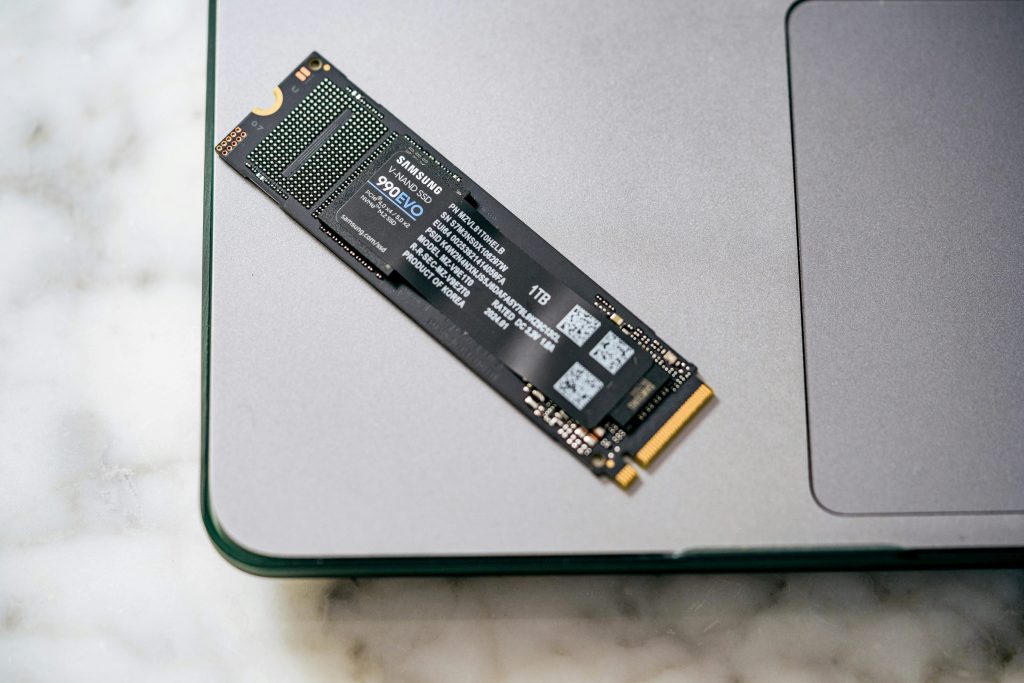
An SSD, or Solid State Drive, is a storage device that uses flash memory to save data. Unlike traditional hard drives, SSDs do not use spinning disks or moving mechanical parts.
Because of this design, SSDs can access data much faster. This means faster boot times, quicker file transfers, smoother multitasking, and faster application loading.
SSDs are commonly used in modern laptops, desktops, gaming PCs, and professional workstations because they provide strong performance and better durability.
What Is an HDD?
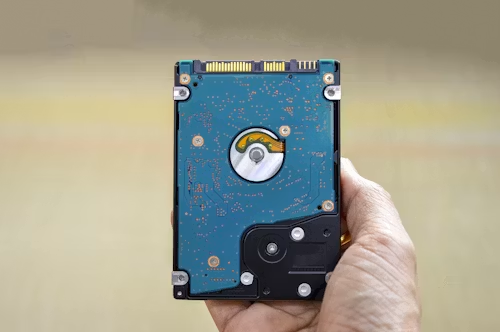
An HDD, or Hard Disk Drive, is a traditional storage device that uses spinning disks and mechanical read/write heads to store and access data.
HDDs are slower than SSDs because they depend on moving parts. However, they are still useful because they usually provide larger storage capacity at a lower cost.
For users who need to store many photos, videos, backups, games, or archives, an HDD can still be a practical and budget-friendly option.
SSD vs HDD: Main Differences
The main difference between SSD and HDD storage is how they store and access data. SSDs use flash memory, while HDDs use mechanical spinning disks. This affects speed, durability, noise, power usage, and price.
| Feature | SSD | HDD |
|---|---|---|
| Speed | Very fast boot times, app loading, and file transfers. | Slower because it uses moving mechanical parts. |
| Durability | More resistant to movement and physical shock. | More vulnerable to drops and mechanical wear. |
| Noise | Silent because it has no moving parts. | Can make noise from spinning disks and moving heads. |
| Power Use | Usually uses less power, which can help laptop battery life. | Usually uses more power than an SSD. |
| Storage Capacity | Available in large sizes, but usually more expensive. | Often cheaper for large storage capacities. |
| Best For | Operating systems, apps, games, and active projects. | Backups, media libraries, archives, and large files. |
CHECK IT OUT: SSD vs HDD
SSD Benefits
SSDs are popular because they can make a computer feel much faster. If your computer currently uses an HDD, upgrading to an SSD is often one of the most noticeable performance improvements you can make.
Main benefits of SSDs include:
- Faster startup: Computers with SSDs usually boot much faster than systems using HDDs.
- Quicker app loading: Programs and games often open more quickly on an SSD.
- Better durability: SSDs have no moving parts, making them better for laptops and portable devices.
- Silent operation: SSDs do not produce mechanical noise.
- Lower power usage: SSDs can help improve battery life on laptops.
- Smoother multitasking: Faster data access can make everyday use feel more responsive.
HDD Benefits
HDDs are older and slower than SSDs, but they still have important advantages. Their biggest benefit is affordable storage capacity.
Main benefits of HDDs include:
- Lower cost per gigabyte: HDDs usually provide more storage for less money.
- Large capacities: HDDs are useful for storing videos, photos, backups, and archives.
- Good for secondary storage: Many users combine an SSD for speed with an HDD for extra space.
- Practical for backups: External HDDs are often used for large backup libraries.
Which Is Better: SSD or HDD?
The better choice depends on how you use your computer. If you want speed, responsiveness, and better everyday performance, an SSD is usually the better option. If you need a lot of storage at a lower price, an HDD may still make sense.
For most beginners, the best setup is often:
- SSD: For the operating system, apps, games, and active files.
- HDD: For backups, videos, photos, archives, and large files.
This combination gives you the speed of an SSD and the affordable capacity of an HDD.
CHECK IT OUT: SSD vs HDD
When Should You Choose an SSD?
You should choose an SSD if performance is your main priority. SSDs are especially useful for people who want a faster and more responsive computer.
An SSD is a good choice for:
- Installing Windows, macOS, or Linux.
- Running apps and software.
- Gaming with shorter loading times.
- Video editing and creative work.
- Laptops that need better battery life and durability.
- Users frustrated with slow startup and sluggish performance.
When Should You Choose an HDD?
You should choose an HDD if you need a lot of storage space and want to keep costs lower. HDDs are still useful for files that do not need the fastest access speed.
An HDD is a good choice for:
- Storing large photo and video libraries.
- Keeping backups.
- Archiving old files.
- Building low-cost storage systems.
- Saving large media files that are not used daily.
What About Hybrid Drives?
A hybrid drive, also called an SSHD, combines traditional HDD storage with a small amount of flash memory. The goal is to offer some speed improvements while still providing larger storage capacity at a lower cost.
Hybrid drives can be useful in some cases, but they are less common today because SSD prices have become more accessible. For many users, a separate SSD and HDD setup is usually a better long-term option.
How Storage Affects Slow Computer Performance
If your computer feels slow, the storage drive may be part of the problem. An older HDD can create slow startup times, delayed file access, and sluggish application loading.
However, storage is not always the only cause. Slow performance can also come from low RAM, too many startup programs, malware, outdated software, or a nearly full drive.
When troubleshooting slow performance, it is important to check both your storage drive and the rest of your system.
How to Troubleshoot Slow Performance on SSDs and HDDs
If your computer is running slowly, use the steps below to identify and fix common storage-related problems.
1. Check Available Storage Space
A nearly full drive can slow down both SSDs and HDDs. If your main drive is almost full, your operating system may have less room for temporary files and system tasks.
Try to delete unnecessary files, move large videos or photos to external storage, and remove programs you no longer use.
2. Remove Temporary Files
Temporary files, cache, and old downloads can build up over time. Cleaning them can free up space and improve performance.
On Windows, you can use Storage Sense or Disk Cleanup. On macOS, you can use built-in storage management options to review and remove large or unnecessary files.
3. Disable Unnecessary Startup Programs
Too many startup programs can make your computer feel slow when turning it on. These programs may also continue running in the background and use system resources.
On Windows, use Task Manager to review startup apps. On Mac, check Login Items in System Settings.
4. Defragment HDDs Only
If you use a traditional HDD, defragmentation can help organize scattered data and improve access speed. Windows includes a built-in tool called Defragment and Optimize Drives.
Do not manually defragment an SSD. SSDs work differently and do not benefit from traditional defragmentation. Modern systems usually optimize SSDs automatically.
5. Check SSD Health and TRIM Support
SSDs use a feature called TRIM to help manage unused data blocks and maintain performance over time. If your SSD is very full, outdated, or unhealthy, performance may decline.
You can use built-in system tools or manufacturer software to check SSD health, firmware updates, and optimization settings.
6. Update Drivers, Firmware, and Software
Outdated drivers, firmware, or operating systems can create performance problems. Keeping everything updated helps improve compatibility, security, and stability.
Check for updates for your operating system, storage drivers, motherboard firmware, and SSD manufacturer tools when available.
7. Scan for Malware
Malware can slow down your computer by running hidden processes, using disk activity, or consuming system resources. If your computer became slow suddenly, run a full security scan.
Use a trusted antivirus or malware removal tool and remove any suspicious programs or browser extensions.
8. Check RAM Usage
Storage upgrades can help, but low RAM can also cause poor performance. If your computer struggles when multiple apps or browser tabs are open, RAM may be a limitation.
Use Task Manager on Windows or Activity Monitor on Mac to check memory usage. If RAM is often near full, upgrading memory may improve multitasking.
READ ALSO: How to Format Windows: A Beginner’s Guide to Operating System Basics
SSD vs HDD Troubleshooting Checklist
| Problem | Possible Cause | Recommended Fix |
|---|---|---|
| Slow startup | Old HDD or too many startup apps | Upgrade to SSD and disable startup programs |
| Slow file access | Fragmented HDD or nearly full drive | Defragment HDD, clean files, or move data |
| Apps open slowly | HDD limitations or low system resources | Install apps on SSD and check RAM usage |
| SSD feels slower over time | Low free space or drive health issues | Free up space and check SSD health |
| Sudden slowdown | Malware, updates, or background processes | Run a malware scan and monitor system usage |
Best Storage Setup for Beginners
For most beginners, the best storage setup depends on budget and usage. If you can only choose one drive, an SSD is usually the better choice for everyday performance.
Recommended beginner setups include:
- Basic use: 500GB SSD for operating system, apps, and personal files.
- Work and study: 1TB SSD for documents, apps, projects, and cloud-synced files.
- Gaming: 1TB or larger SSD for faster game loading.
- Media storage: SSD for system performance plus HDD for videos, photos, and backups.
- Budget setup: Smaller SSD for the operating system plus larger HDD for storage.
Common Mistakes When Choosing Computer Storage
Choosing storage can be easier when you know what mistakes to avoid. Beginners often focus only on price or capacity, but performance and long-term use also matter.
- Choosing only by storage size: A large HDD may be cheaper, but it will not match SSD speed.
- Buying too little storage: A very small SSD can fill up quickly and reduce flexibility.
- Ignoring backup needs: No storage drive is immune to failure, so backups are still necessary.
- Defragmenting an SSD: SSDs should not be treated like traditional HDDs.
- Forgetting compatibility: Not every computer supports every SSD type, especially NVMe drives.
- Ignoring overall system limits: A storage upgrade may not solve every problem if RAM or CPU is also limited.
READ ALSO: How to Format Windows: A Beginner’s Guide to Operating System Basics
FAQ About SSD vs HDD
Is SSD better than HDD?
An SSD is better for speed, durability, and responsiveness. An HDD is better for low-cost, high-capacity storage. The best choice depends on whether performance or storage capacity matters more to you.
Does an SSD make a computer faster?
Yes. An SSD can make a computer feel much faster by reducing startup times, improving app loading, and speeding up file access.
Is HDD still worth buying?
Yes. HDDs are still useful for backups, media libraries, archives, and large files when affordable storage capacity is more important than speed.
Should I use SSD and HDD together?
Yes. Many users use an SSD for the operating system and apps, then use an HDD for large files, backups, and media storage. This setup balances speed and capacity.
Why is my SSD or HDD running slow?
Your drive may be slow because it is nearly full, outdated, unhealthy, affected by malware, or limited by other system components such as RAM. HDDs may also slow down because of fragmentation.
Conclusion
When comparing SSD vs HDD, the best choice depends on your needs. SSDs are faster, quieter, more durable, and better for everyday performance. HDDs are more affordable for large storage needs, making them useful for backups, archives, and media files.
For most beginners, an SSD is the best choice for the operating system and main applications. If you need extra space, adding an HDD for storage can create a balanced setup.
To troubleshoot slow performance, check storage space, remove temporary files, manage startup programs, scan for malware, update software, and monitor drive health. With the right storage choice and regular maintenance, your computer can run faster, smoother, and more reliably.
CHECK IT OUT: SSD vs HDD

Beatriz Johnson is a technology writer with an academic background in Digital Communication and Information Technology. She helps beginners understand digital tools, online safety, apps, productivity, and basic tech skills through clear and practical guides.