
Effective Tips to Remove Malware and Protect Your Device
Effective Tips to Remove Malware and Protect Your Device
Malware can affect smartphones, tablets, laptops, and desktop computers. It may slow down your device, display unwanted pop-ups, steal personal information, damage files, or even lock your system through ransomware.
Knowing how to remove malware and protect your device is essential for keeping your data, accounts, and personal information safe. The good news is that many basic security steps are simple enough for beginners and can greatly reduce your risk.
In this guide, you will learn how to recognize malware, remove suspicious threats, protect your device, and build safer digital habits for everyday use.
What Is Malware?
Malware is malicious software designed to harm, access, or control a device without the user’s permission. It can appear in different forms, including viruses, spyware, ransomware, adware, trojans, and other unwanted programs.
Some malware is designed to steal passwords or financial details. Other types may track your activity, display unwanted ads, or prevent you from accessing your files. Because malware can spread through downloads, email attachments, fake websites, and infected apps, every user should understand the basics of device protection.
Common Signs Remove of Malware on Your Device
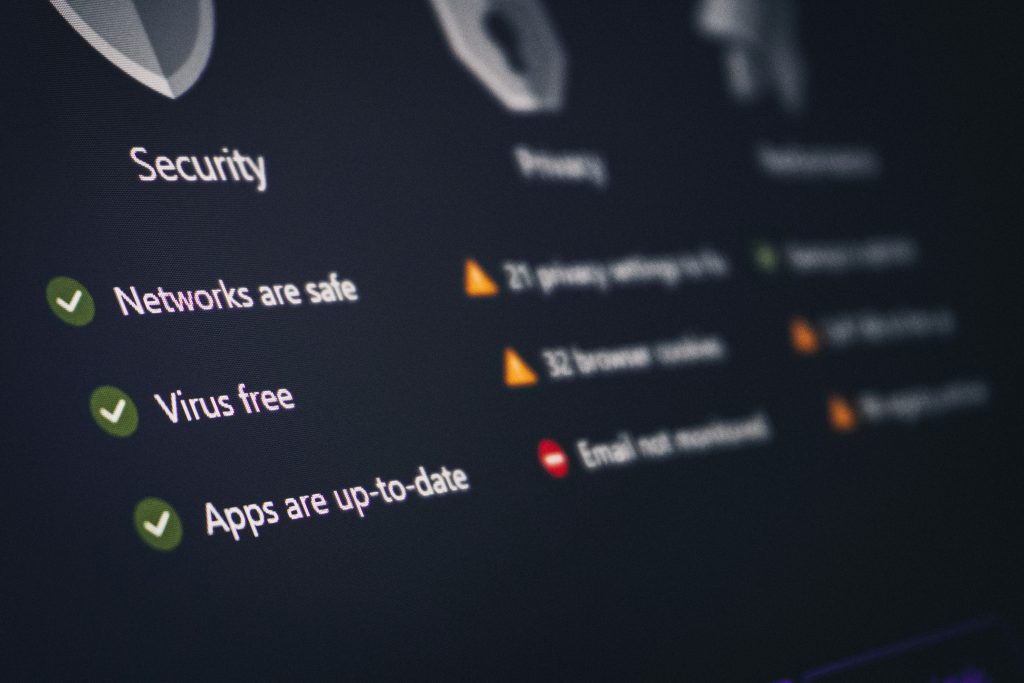
Malware is not always easy to notice at first. However, many infections create warning signs that something is wrong with your device.
Common signs of malware include:
- Slow performance: Your device takes longer to open apps, load pages, or complete simple tasks.
- Frequent pop-ups: Unexpected ads or warning messages appear, even when you are not browsing the web.
- Unknown apps: You find programs or apps you do not remember installing.
- Unexpected crashes: Your device freezes, restarts, or crashes more often than usual.
- Battery drain: Your phone or laptop battery runs out faster than normal.
- High data usage: Your device uses more internet data than expected.
- Browser changes: Your homepage, search engine, or browser extensions change without permission.
- Security alerts: Your antivirus or operating system warns you about suspicious activity.
If you notice several of these signs, it is important to act quickly before the problem gets worse.
READ ALSO: Complete Guide to Password Managers to Protect Your Accounts
How to Remove Malware And Protect Your Device
If you suspect that your device is infected, do not ignore the warning signs. The sooner you take action, the easier it may be to limit damage and restore normal performance.
1. Disconnect from the Internet
If you believe your device is infected, disconnect it from Wi-Fi or mobile data temporarily. This can help stop malware from sending information, downloading additional threats, or communicating with suspicious servers.
You do not need to stay offline forever, but disconnecting while you investigate the issue can reduce risk.
2. Restart Your Device in Safe Mode
Safe Mode starts your device with only essential system functions. This can prevent some malware or unwanted apps from running in the background while you remove them.
On Windows, you can use Advanced Startup options to enter Safe Mode. On Android, many devices allow Safe Mode by holding the power menu option. On Mac, startup options depend on whether the device uses Apple silicon or an Intel processor.
Safe Mode is especially useful when suspicious apps keep reopening or preventing normal removal.
3. Run a Full Antivirus Scan
A trusted antivirus or security program can scan your device for known malware threats. Run a full system scan instead of a quick scan if you suspect a serious infection.
Reliable security tools can identify viruses, trojans, spyware, ransomware, and other unwanted software. After the scan, follow the recommended steps to quarantine or remove any detected threats.
4. Use a Remove Malware Removal Tool
Some threats may be difficult to remove with standard antivirus software. In these cases, a specialized malware removal tool can help detect adware, spyware, browser hijackers, and persistent unwanted programs.
Only download malware removal tools from official websites. Avoid random “cleaner” apps or fake security warnings, as these can sometimes be malware themselves.
5. Uninstall Suspicious Apps and Programs
Review your installed apps and programs carefully. If you find software you do not recognize, did not install, or no longer trust, remove it.
Pay special attention to apps installed recently, browser extensions, free toolbars, unknown system optimizers, and programs that appeared around the same time your device started acting strangely.
6. Remove Suspicious Browser Extensions
Browser extensions can sometimes track activity, inject ads, redirect searches, or change browser settings. Open your browser’s extension settings and remove anything unfamiliar or unnecessary.
After removing suspicious extensions, reset your homepage and search engine if they were changed without permission.
7. Update Your Operating System and Apps
After removing malware, update your operating system, browser, apps, and security software. Updates often include security patches that fix vulnerabilities malware may use to infect devices.
Keeping your system updated is one of the simplest and most effective ways to reduce future infections.
8. Restore from a Backup if Needed
If malware caused serious damage or encrypted your files, restoring from a clean backup may be necessary. Use a backup created before the infection occurred.
Before restoring files, make sure the malware has been removed so you do not reintroduce the same threat.
9. Change Important Passwords
If you suspect malware may have stolen information, change passwords for important accounts after cleaning your device. Start with email, banking, cloud storage, social media, and work accounts.
Use strong, unique passwords and consider using a password manager to keep them organized securely.
READ ALSO: Complete Guide to Password Managers to Protect Your Accounts
Malware Removal Checklist
| Step | Purpose | When to Do It |
|---|---|---|
| Disconnect from the internet | Limits communication with suspicious servers | When infection is suspected |
| Use Safe Mode | Prevents some malware from running | When malware is hard to remove |
| Run antivirus scan | Detects and removes known threats | Immediately after warning signs appear |
| Remove suspicious apps | Deletes unwanted or harmful software | After reviewing installed programs |
| Update software | Fixes security vulnerabilities | After cleaning the device |
| Change passwords | Protects accounts from stolen credentials | After malware removal |
How to Protect Your Device from Malware
Removing malware is important, but preventing future infections is even better. Strong digital habits can greatly reduce your chances of downloading harmful software or exposing your data.
Keep Your Software Updated
Updates help close security gaps that attackers may try to exploit. Keep your operating system, browser, apps, and antivirus software updated regularly.
Whenever possible, enable automatic updates so you do not miss important security patches.
Download Apps Only from Trusted Sources
Only download apps and software from official websites, trusted developers, or established app stores. Avoid downloading cracked software, unofficial installers, and unknown files from suspicious websites.
Many malware infections begin when users install software from unsafe sources.
Be Careful with Email Attachments and Links
Email is one of the most common ways malware reaches users. Be cautious with unexpected attachments, urgent messages, fake invoices, delivery alerts, or links asking you to log in.
If a message looks suspicious, do not click links or download files until you verify the sender.
Use Multi-Factor Authentication
Multi-factor authentication adds an extra layer of protection to your accounts. Even if someone steals your password, they may still need a second verification method to access your account.
Enable multi-factor authentication on email, banking, cloud storage, social media, and work accounts whenever available.
Back Up Your Data Regularly
Backups help protect your important files if malware damages or locks your device. You can use an external drive, cloud storage, or both.
For stronger protection, keep at least one backup separate from your main device. This is especially important against ransomware.
Secure Your Wi-Fi Network
A weak Wi-Fi password or outdated router settings can create security risks. Use a strong Wi-Fi password, enable modern encryption, and update your router firmware when available.
You should also avoid using default router passwords, as attackers may know them.
Use a Firewall
A firewall helps monitor network traffic and block unauthorized connections. Most modern operating systems include built-in firewall features.
Make sure your firewall is enabled, especially when using public or shared networks.
Safe Browsing Tips to Avoid Malware
Many malware infections happen during everyday browsing. A few simple habits can help you stay safer online.
- Avoid clicking suspicious ads or pop-ups.
- Do not download files from unknown websites.
- Check website addresses before entering personal information.
- Be careful with fake software update alerts.
- Use trusted browser extensions only.
- Remove extensions you no longer use.
- Do not ignore browser or security warnings.
Common Malware Protection Mistakes to Avoid
Even users with antivirus software can make mistakes that increase their risk. Avoid these common security problems:
- Ignoring updates: Outdated software may contain known security flaws.
- Using weak passwords: Simple passwords make account theft easier.
- Clicking unknown links: Suspicious links can lead to phishing pages or malware downloads.
- Installing too many browser extensions: Untrusted extensions can create privacy and security risks.
- Downloading pirated software: Cracked programs often contain hidden malware.
- Skipping backups: Without backups, malware damage can lead to permanent data loss.
FAQ About Malware Removal and Device Protection
Can malware be removed completely?
Yes, many malware infections can be removed with antivirus software, malware removal tools, Safe Mode, and careful cleanup. In severe cases, a system reset or restoring from a clean backup may be necessary.
How do I know if my device has malware?
Common signs include slow performance, pop-ups, unknown apps, browser changes, crashes, high data usage, and unusual account activity.
Is antivirus software enough to protect my device?
Antivirus software is important, but it is not enough by itself. You should also update your software, use strong passwords, avoid suspicious downloads, enable multi-factor authentication, and back up your data.
Can phones get malware?
Yes. Smartphones can be infected through unsafe apps, malicious links, suspicious downloads, or compromised websites. Android devices are more commonly targeted, but all users should be cautious.
Should I change my passwords after removing malware of my device?
Yes. If you suspect malware may have accessed your data, change important passwords after cleaning the device. Prioritize email, financial accounts, cloud storage, and work accounts.
READ ALSO: Complete Guide to Password Managers to Protect Your Accounts
Conclusion
Learning how to remove malware and protect your device is an essential part of staying safe online. Malware can slow down your system, steal sensitive information, damage files, and create serious privacy risks.
Start by recognizing warning signs, running a full security scan, removing suspicious apps, checking browser extensions, updating your system, and changing important passwords when needed. After the device is clean, focus on prevention through safer downloads, regular updates, backups, firewalls, secure Wi-Fi, and multi-factor authentication.
Malware protection is not a one-time task. It is an ongoing habit. With the right tools and consistent digital safety practices, you can reduce future risks and keep your devices more secure.
References
- Australian Cyber Security Centre: How to Secure Your Devices
- CISA: Secure Our World
- Microsoft Support: Protect Your PC from Viruses

Beatriz Johnson is a technology writer with an academic background in Digital Communication and Information Technology. She helps beginners understand digital tools, online safety, apps, productivity, and basic tech skills through clear and practical guides.