How to Fix a Slow Computer: 10 Easy Ways to Boost Performance
How to Fix a Slow Computer: 10 Easy Ways to Boost Performance
A slow computer can make even simple tasks frustrating. If your device takes too long to start, freezes during basic work, or struggles to open everyday programs, there are usually clear reasons behind the problem.
The good news is that you do not need advanced technical knowledge to fix a slow computer. With a few basic maintenance steps, you can improve speed, reduce system clutter, and make your computer more responsive.
In this guide, you will learn how to fix a slow computer, optimize performance, manage startup programs, remove unnecessary files, update software, check for malware, and decide when a hardware upgrade may be necessary.
CHECK IT OUT: Tips to improve PC performance in Windows
Why Is Your Computer So Slow?
Before trying to improve performance, it helps to understand what usually causes a computer to slow down. In many cases, slow performance is caused by software clutter, background processes, outdated systems, low memory, or older hardware.
Common causes of a slow computer include:
- Too many startup programs: Some apps open automatically when your computer starts, using memory and processing power.
- Background processes: Programs running in the background can consume system resources even when you are not actively using them.
- Low storage space: A nearly full drive can make your computer slower and less responsive.
- Outdated software: Missing updates can lead to bugs, security risks, and performance issues.
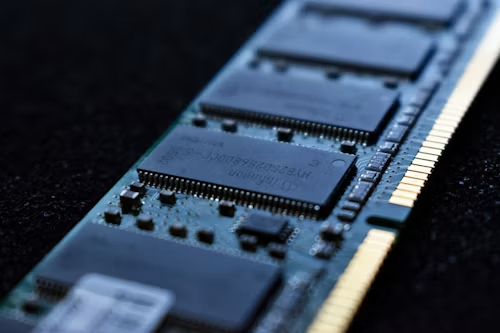
- Insufficient RAM: Low memory can make multitasking difficult and cause freezing or lag.
- Malware or unwanted software: Malicious programs can slow down your system and create security problems.
- Older hardware: Older processors, hard drives, or limited memory may struggle with modern applications.
How to Fix a Slow Computer Step by Step
The best way to fix a slow computer is to start with simple software improvements before considering hardware upgrades. The following steps are beginner-friendly and can help improve performance on many Windows and Mac devices.
1. Restart Your Computer
Restarting your computer may seem too simple, but it can solve many temporary performance issues. A restart clears temporary memory, closes background processes, and gives your system a fresh start.
If your computer has been running for days without restarting, this should be your first step.
2. Manage Startup Programs
Startup programs can slow down your computer before you even begin working. Many apps automatically launch when the system starts, even if you do not need them right away.
On Windows: Open Task Manager, go to the Startup tab, and disable programs you do not need when your computer starts.
On Mac: Open System Settings, go to General, then Login Items, and remove unnecessary apps from startup.
Disabling unnecessary startup programs can improve boot time and free up system resources.
3. Uninstall Programs You Do Not Use
Unused programs take up storage space and may run background services that affect performance. Review your installed apps and remove anything you no longer need.
On Windows: Go to Settings, open Apps, and uninstall unnecessary programs.
On Mac: Open the Applications folder and move unused apps to the Trash.
Focus on removing large apps, old games, trial software, and programs you no longer recognize or use.
4. Clear Temporary Files and System Clutter
Over time, computers collect temporary files, cache, downloads, and other unnecessary data. Clearing these files can free up storage and help your system run more smoothly.
On Windows: Use Disk Cleanup or Storage Sense to remove temporary files and system clutter.
On Mac: Open storage settings and use the built-in storage management tools to review large files, downloads, and unused items.
It is also a good idea to empty the Recycle Bin or Trash after removing unnecessary files.
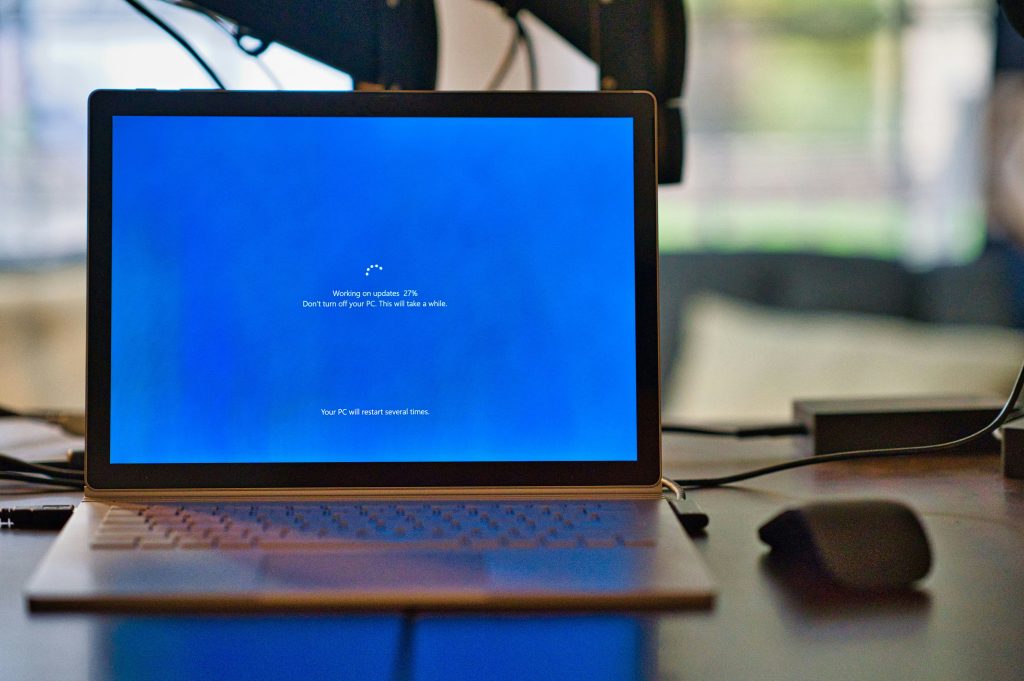
5. Keep Your Software Updated
Software updates are important for performance, stability, and security. Operating systems, drivers, browsers, and apps often receive updates that fix bugs and improve speed.
CHECK IT OUT: Tips to improve PC performance in Windows
Make sure you regularly update:
- Your operating system
- Web browsers
- Security software
- Device drivers
- Frequently used applications
Keeping your computer updated can prevent many common performance problems.
6. Check for Malware and Unwanted Software
Malware can slow down your computer, display unwanted ads, collect information, or run hidden processes in the background. If your computer became slow suddenly, a malware scan is a smart step.
On Windows: Use Windows Security to run a full system scan.
On Mac: Use a trusted security tool if you notice unusual behavior, unwanted pop-ups, or unknown apps.
Only download security software from trusted sources to avoid installing more unwanted programs.
7. Free Up Storage Space
A full drive can reduce performance, especially when your computer needs space for temporary files and system operations. Try to keep a reasonable amount of free space available on your main drive.
You can free up storage by:
- Deleting duplicate files
- Removing old downloads
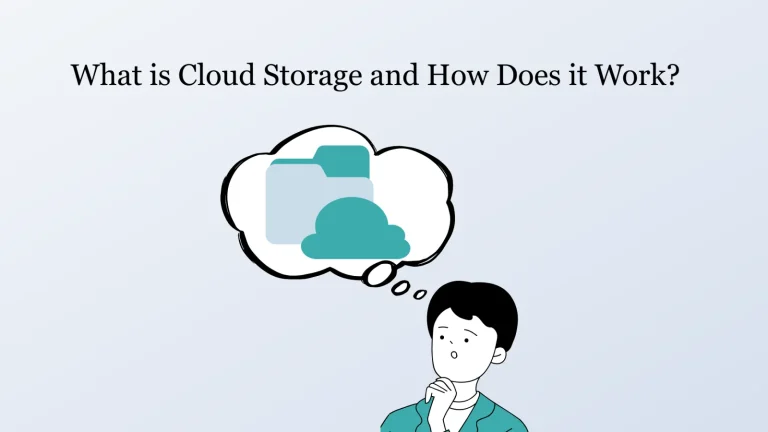
- Moving photos and videos to external storage or cloud storage
- Uninstalling large apps you no longer use
- Clearing browser cache when needed
8. Optimize Your Drive
Drive optimization depends on whether your computer uses a traditional hard drive or a solid-state drive.
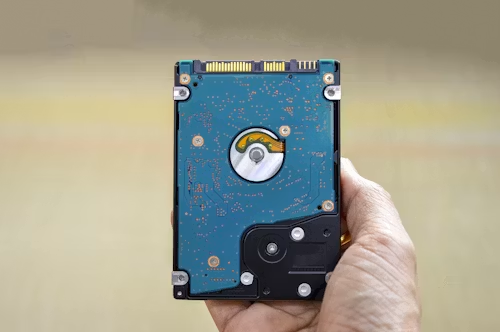
If your computer uses an older HDD, defragmenting the drive can help organize data and improve access speed. On Windows, you can use the Defragment and Optimize Drives tool.
If your computer uses an SSD, do not manually defragment it. SSDs work differently and should be maintained through built-in system optimization tools.
9. Adjust Visual Effects
Animations, transparency effects, and visual enhancements can make your system look better, but they may slow down older computers.
On Windows: Search for performance settings and choose an option that prioritizes performance over visual effects.
On Mac: Use accessibility settings such as Reduce Motion and Reduce Transparency to reduce visual strain on the system.
This step can be especially helpful for older laptops or computers with limited memory.
10. Monitor System Performance
Performance monitoring tools can show which apps are using too much CPU, memory, disk, or energy. This helps you identify the real cause of slow performance.
On Windows: Use Task Manager or Resource Monitor.
On Mac: Use Activity Monitor.
If one app is using too many resources, you may need to close it, update it, uninstall it, or replace it with a lighter alternative.
Computer Performance Optimization Checklist
| Optimization Step | What It Improves | Best For |
|---|---|---|
| Disable startup programs | Faster boot time and fewer background processes | Computers slow at startup |
| Clear temporary files | More storage space and less clutter | Systems with low storage |
| Uninstall unused apps | Reduced system load | Computers with too many installed programs |
| Update software | Better stability, security, and performance | All users |
| Scan for malware | Improved security and fewer hidden resource drains | Computers with sudden slowdowns |
| Upgrade RAM or SSD | Major speed and multitasking improvements | Older or low-spec computers |
READ ALSO: How to Format Windows: A Beginner’s Guide to Operating System Basics
When Should You Upgrade Your Computer Hardware?
If you have already cleaned up your system and performance is still poor, the problem may be hardware-related. Some upgrades can make an older computer feel much faster.
Upgrade Your RAM
RAM affects how well your computer handles multiple apps at the same time. If your computer freezes when you open several browser tabs or programs, more RAM may help.
For basic use, 8GB of RAM is usually more comfortable than 4GB. For heavier multitasking, creative work, or modern productivity apps, 16GB may be a better option.
Switch from HDD to SSD
If your computer still uses a traditional hard drive, upgrading to an SSD can create one of the biggest speed improvements. An SSD can make startup faster, open apps more quickly, and improve general responsiveness.
For many older computers, this upgrade can make a noticeable difference.
Common Mistakes That Keep Your Computer Slow
Some habits can make performance problems worse. Avoid these common mistakes if you want your computer to stay faster for longer:
- Keeping too many apps open at the same time
- Ignoring system updates for long periods
- Installing unknown software from unsafe websites
- Letting storage become almost completely full
- Never restarting your computer
- Using too many browser extensions
- Running multiple antivirus programs at once
- Saving too many large files on the desktop
CHECK IT OUT: Tips to improve PC performance in Windows
How to Keep Your Computer Running Faster Over Time
Fixing a slow computer is important, but maintaining performance is even better. A simple routine can help prevent your computer from becoming slow again.
Try this basic maintenance schedule:
- Weekly: Restart your computer and close unused apps.
- Monthly: Delete temporary files and review downloads.
- Every few months: Uninstall unused programs and check startup apps.
- Regularly: Install system updates and scan for security issues.
- As needed: Move large files to cloud storage or an external drive.
FAQ About How To Fix a Slow Computer
Why is my computer suddenly so slow?
A computer may become slow suddenly because of malware, too many background processes, low storage space, a recent update issue, or a program using too many system resources.
How can I make my computer faster for free?
You can make your computer faster for free by disabling startup programs, uninstalling unused apps, deleting temporary files, updating software, scanning for malware, and closing unnecessary browser tabs.
Does deleting files make a computer faster?
Deleting unnecessary files can help if your storage is almost full. However, deleting files alone may not fix all performance problems if the issue is caused by low RAM, malware, background apps, or old hardware.
Should I defragment my computer?
Defragmentation can help traditional hard drives, but it is not recommended for SSDs. Modern systems usually manage SSD optimization automatically.
When should I replace my computer instead of fixing it?
You may need to replace your computer if it cannot support modern software, has very limited upgrade options, frequently crashes, or remains slow even after cleanup and basic hardware upgrades.
Learning how to fix a slow computer
Learning how to fix a slow computer can help you save time, reduce frustration, and extend the useful life of your device. Many performance problems can be improved with simple steps such as managing startup programs, clearing temporary files, updating software, removing unused apps, and scanning for malware.
If your computer is still slow after basic maintenance, hardware upgrades such as adding RAM or switching to an SSD may provide a major improvement. The best approach is to start with simple fixes, monitor your system, and make upgrades only when necessary.
With regular maintenance and better digital habits, your computer can stay faster, cleaner, and more reliable for everyday work, study, and entertainment.
READ ALSO: How to Format Windows: A Beginner’s Guide to Operating System Basics

Beatriz Johnson is a technology writer with an academic background in Digital Communication and Information Technology. She helps beginners understand digital tools, online safety, apps, productivity, and basic tech skills through clear and practical guides.